A Quiet Place Deadzone PC Keyboard and Mouse
Verify Pre-Alpha bindings; use common Roblox FPS patterns as a baseline.
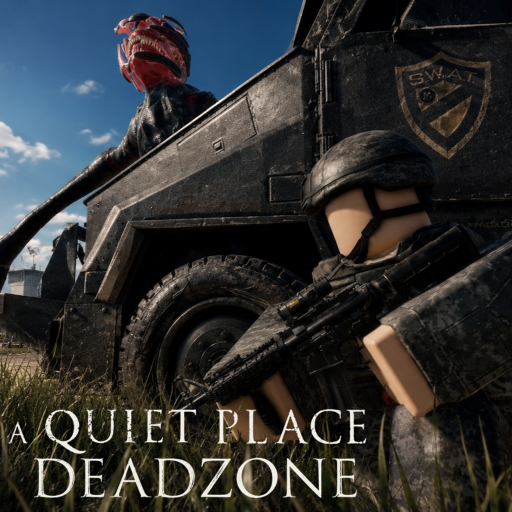
This page covers PC controls for A Quiet Place: Deadzone on Roblox by QPG STUDIOS. Deadzone is in Pre-Alpha, set in Cold Spring, New York, where sound-hunting creatures punish noisy movement. Your keyboard habits directly affect whether you survive the next block.
Important: We do not list fabricated official keybinds. Menus and defaults can change between builds — especially after Latest Update v1.2. Always open the in-game Settings, Controls, or Help panel and confirm labels on your screen before memorizing anything from a wiki.
What to verify in-game first
Before referencing any table below, check whether Deadzone exposes:
- A dedicated Controls or Keybinds screen
- Remap options for movement, interact, inventory, or crouch
- Shift Lock toggles (Roblox account setting plus in-experience behavior)
- Sprint or stamina indicators tied to movement speed
If a feature is missing today, it may arrive in a later Pre-Alpha patch — track Pre-Alpha Status for gamepass and system changes.
Common Roblox FPS patterns (verify in settings)
These are typical keyboard layouts for Roblox first-person horror experiences. They are not guaranteed Deadzone defaults until you confirm them in your session:
| Action | Common pattern | Notes |
|---|---|---|
| Move | WASD | Standard Roblox PC movement |
| Look | Mouse | Adjust sensitivity in Roblox settings |
| Jump | Space | Loud landings can attract hunters — use sparingly |
| Sprint | Left Shift (often) | Many horror titles gate sprint with stamina or noise |
| Crouch | C, Ctrl, or C key (if available) | Critical for stealth; confirm if mapped |
| Interact | E or F (if shown) | Looting and doors — watch for bump sounds |
| Inventory | Tab, I, or UI button | Pre-Alpha UI may differ |
| Menu / Pause | Esc or in-game button | Safe moment to adjust audio |
Copy nothing blindly. Join a private or low-pop server, open settings, and walk through each action once without loot on the line.
Mouse and camera discipline
Horror readability on Roblox often comes down to mouse sensitivity and Shift Lock. Too high sensitivity causes over-rotation and accidental wall bumps — both create noise spikes creatures may investigate.
Practical baseline:
- Lower sensitivity until you can corner smoothly without jitter.
- Enable Shift Lock if it helps you strafe quietly through doorways.
- Avoid rapid 360 scans unless you accept the risk of knocking props.
Pair camera habits with Stealth Tips and How to Stay Silent so movement and camera work together.
Sprint, walk, and sound tradeoffs
Sprint feels safe when panic hits, but sprinting is often the loudest steady input you can make. Treat sprint as an emergency tool, not a default travel mode. Walk when approaching intersections, building interiors, and known creature patrol zones described on Creatures Overview.
If Deadzone shows a stamina bar or footstep icon, learn its rhythm during safe moments in Cold Spring — see Survive Cold Spring for route planning.
Interaction and inventory risk
Looting and crafting UI can freeze movement at the worst times. Know which key opens inventory before you enter a hot zone. Remember: leaving while the danger indicator is active can wipe carried items — read Keep Your Inventory and only menu when the threat state is clear.
Redeem 10000LIKES from Active Codes during calm moments, not mid-escape. The Codes Hub explains verification policy.
Roblox client settings worth checking
Outside Deadzone-specific menus, Roblox PC settings affect control feel:
- Shift Lock Switch — consistency when strafing
- Camera mode — first person vs follow (Deadzone is horror-first; first person is typical)
- Graphics level — smoother frames reduce input lag during chases
- Volume mixer — separate Roblox from Discord so alerts do not bleed into mic detection
Audio-specific tuning lives on Audio Settings and Microphone Settings.
New player session flow
- How to Play — rules and UI tour
- This page — verify bindings in a safe area
- Audio Settings — mic on/off decision
- Silence Survival Checklist — pre-run ritual
- Short Cold Spring loop from Survive Cold Spring
Related pages
- Controls Hub — overview and Pre-Alpha disclaimer
- Review — purchase expectations before spending Robux
- Scripts — optional third-party tools with ban risk; never required
Controls will keep evolving while QPG STUDIOS ships Pre-Alpha updates. Bookmark this page, confirm keys after each patch, and treat every sprint key as a volume knob pointed at the creatures listening in the dark.
Frequently Asked Questions
Quick answers drawn from how players actually survive Cold Spring.
What are the official Deadzone PC keybinds?
There is no stable public sheet during Pre-Alpha. Open in-game settings each session and treat wiki tables as common Roblox patterns until you verify them.
How do I crouch on PC?
Many Roblox horror games map crouch to C or Ctrl if the feature exists. Check the controls panel — crouch may be added or remapped in updates.
Why does sprint get me killed?
Sprint often increases footstep noise. Walk near hotspots and save sprint for open escape lanes you scouted in advance.
Should I change mouse sensitivity?
Yes, if you bump walls or over-rotate. Smoother turns reduce accidental sound spikes that hunters investigate.